
Scheduling & Extensions
Independent auction schedule
Section titled “Independent auction schedule”Leave Auction Lot empty. In Schedule & Auction Lot on the Auction tab, set Auction Starts and choose End mode. Use the timezone configured in WordPress. Before the start, bidding is unavailable; after closing, new bids are rejected.
| End mode | Behavior |
|---|---|
| Fixed end date | Set Auction Ends to a specific date and time. This is the default mode. |
| Duration after first bid | The first accepted bid starts the auction’s closing countdown. Set Duration (minutes) instead of Auction Ends. |
Duration after first bid
Section titled “Duration after first bid”- Select Duration after first bid.
- Enter a whole Duration (minutes) from
1to525600. The initial field value is1440minutes (24 hours). - Optionally set First bid deadline after Auction Starts. Without an accepted bid by that deadline, the auction ends without a sale. Leave it empty to wait indefinitely after the start.
- Save and check the customer-facing auction page.
The first accepted bid sets the end time to the bid time plus the configured duration. Rejected bids do not start the countdown. Later bids do not restart the full duration; they follow the configured late-bid extension rules.
The first bid deadline only limits how long the auction waits for its first bid. Once a bid is accepted, the full duration applies, even if the resulting end time falls after that deadline.
Example: with 1440 minutes configured, a first accepted bid at 14:00 sets the end to 14:00 the following day, before any extensions.
Before the first bid, the storefront explains that the countdown starts with the first bid. If a deadline is set, it displays the first bid deadline countdown. After the first accepted bid, it displays the auction’s closing countdown.
The end mode, duration, and first bid deadline are locked once bidding has begun. For a new sale, use the relisting workflow; it resets the first-bid timer. If a first bid deadline was configured, the relist end becomes the new deadline.
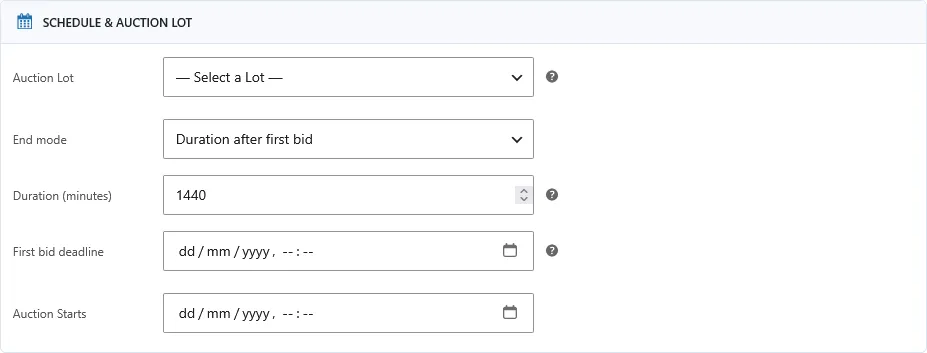
User-provided screenshot received on 2026-11-03. The Auction Lot selector is empty. Whether these settings were saved and the source site are unverified; the image shows configuration fields, not a completed bidding test.
Date entry and auction closure are separate concerns. The closing cron must run reliably for completion processing and notifications.
Extend an auction on a late bid
Section titled “Extend an auction on a late bid”Enable Extend auction on bid?, then configure the final-bid window and extension duration in seconds.
Example: a final-bid window of 60 seconds and an extension of 120 seconds allows the auction to extend when a qualifying bid arrives in the final minute. Treat the live displayed end time as authoritative after extension.
This feature allows further bidding near the end. Repeated late bids can delay the final result.
Auctions assigned to lots
Section titled “Auctions assigned to lots”Manage dates and extension behavior on the parent lot. The item’s own schedule and extension controls no longer govern the sale independently.
Parallel lots may extend just the affected auction or all auctions in the lot, according to the lot’s extension option. Sequential lots additionally need to preserve the order of upcoming items; review their recalculated schedule after an extension.
Screen example
Section titled “Screen example”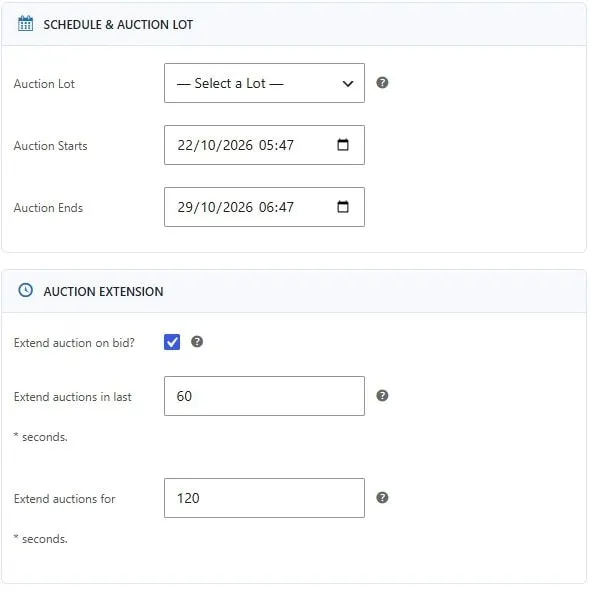
Individual auction dates and late-bid extension controls. Captured from the Torque Auctions demo. Example values are not recommended defaults.