
Your First Auction
Create an item
Section titled “Create an item”- Open Auctions → Add New Auction.
- Enter a title, description, and product image.
- Confirm that the product type is Auction.
- Open the Auction tab in Product data.
- Choose Normal as the auction type and leave proxy bidding disabled for this first test.
- Enter Start Price
100and Bid increment5. - Leave the reserve and Buy It Now price empty for this test.
- Set Auction Starts and Auction Ends, with the end after the start. Leave Auction Lot empty.
- Check stock, shipping, and tax settings for the item, then publish it.
Test as a customer
Section titled “Test as a customer”Use a separate customer account. Open the auction after its start time and submit the amount shown as the minimum acceptable bid. With a fixed increment of 5, subsequent normal bids must meet the next displayed minimum.
Confirm the accepted-bid message, current price, history, and customer notification. Use a second customer account if you want to test outbid behavior.
Test completion
Section titled “Test completion”On a test item, allow the auction to end and run the closing cron. Confirm the winner under Auctions winners, open the winner’s payment link, and complete checkout with a test payment method.
Check the order and payment state separately. See Winners & Payments for the full workflow.
Screen example
Section titled “Screen example”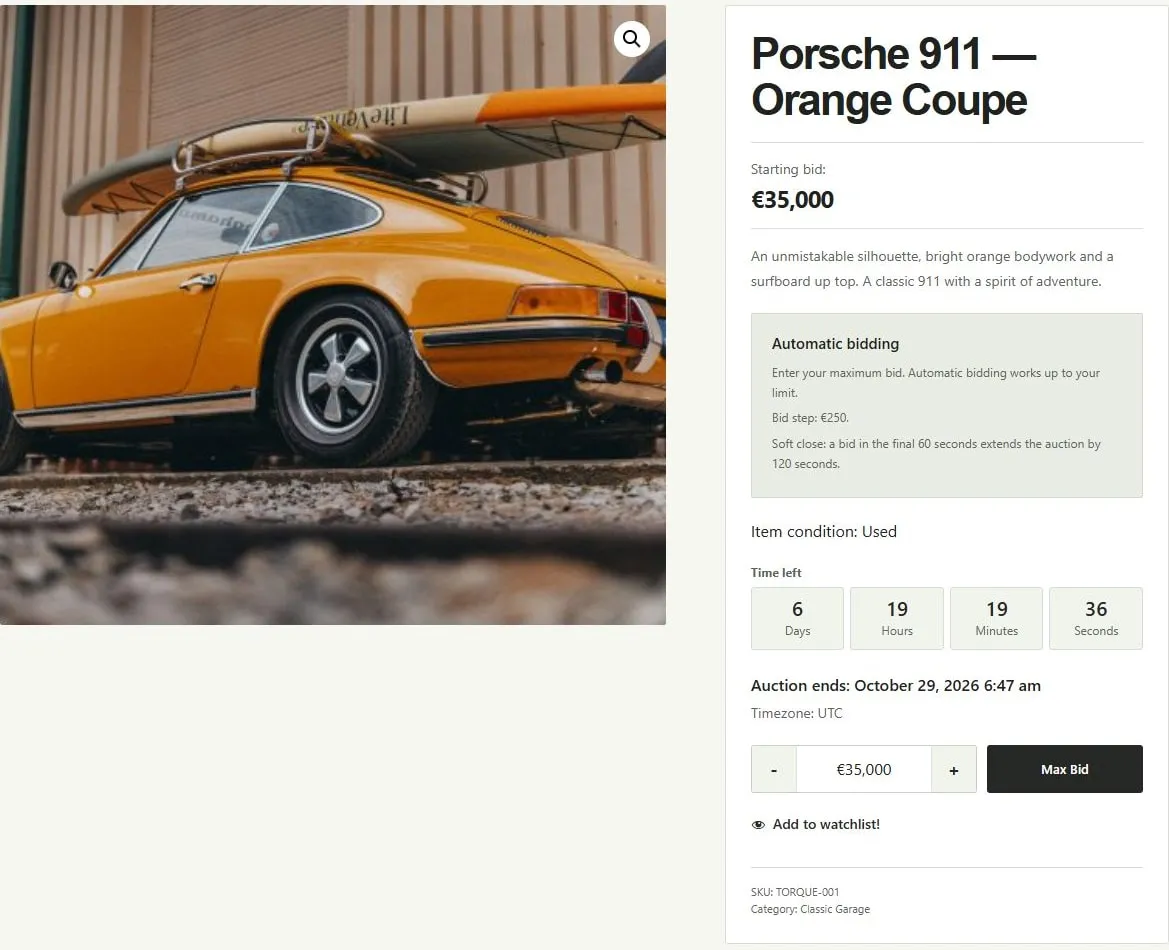
Porsche 911 demo auction with starting price, automatic bidding, countdown, and bid form. Captured from the Torque Auctions demo. Example values are not recommended defaults.